From
Alsado, Autodesk, Bechtle PLM, Dassault Systèmes, Eplan, Kisters, Mendix, PTC, Schnaithmann, Siemens Digital Industries Software, Simus Systems, Zacher Component | Translated by AI
10 min Reading Time
We have gathered some tips & tricks for everyone working with CAD to make their daily work easier. AI and the cloud play a role, but even seemingly small life hacks for individual solutions can have a big impact.
We showcase solutions and tips that ensure greater efficiency in design.
(Image: Kisters)
Analyze Drawing Information With AI And Assign it to 3D Models
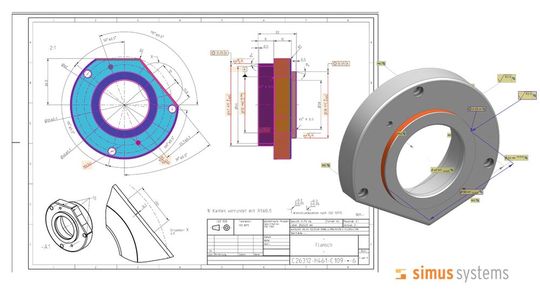
The data specialist Simus Systems has developed a solution that evaluates drawing information using AI and assigns it to 3D models. The specially trained artificial intelligence automatically recognizes annotations, dimensions, tolerances, and other manufacturing information from the drawing and intelligently links them with the 3D model. The result: an enriched STEP model as the perfect foundation for forward-looking digital processes.
The solution analyzes drawing information using AI and automatically assigns it to 3D models.
(Image: Simus Systems)
Designers benefit in multiple ways: drawings and models can be found much faster and more specifically—for example, for variant design or inquiries from production. At the same time, the accuracy of automated manufacturing cost calculations increases already during the design phase, as all relevant information is consistently and fully available. This ensures greater planning reliability, shorter lead times, and more efficient coordination with downstream departments. Less effort, more transparency—from design to procurement.
Quickly Delete Holes in Imported Parts in Solidworks
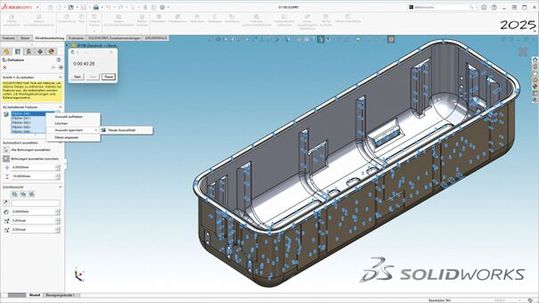
After removing the holes, the model's complexity is significantly reduced: The number of surfaces decreased from 1,810 to 1,266. The graphic triangles were reduced by 36% (from 82,710 to 52,628).
(Image: Dassault Systèmes)
In imported CAD parts, holes are often undesirable—whether for performance reasons or to protect intellectual property (IP). Unlike native Solidworks models, feature-based tools for finding and removing holes cannot be used in imported parts, as these parts do not have a feature history.
In this example, the imported component contains 1,810 surfaces. To still be able to identify the holes, users can use the Defeature command—not to simplify the model, but solely to detect the holes.
A helpful option in the Defeature dialog allows you to exclude holes, for example, if they are needed for positioning components in an assembly. With the "Auto Select" setting, SolidWorks from Dassault Systèmes detects all holes with a diameter of 0 inches to 0.4 inches in this example. A total of 544 holes are found and saved as a selection set without continuing the defeature process. This process takes approximately 50 seconds, depending on your computer's performance.
In the next step, this selection set is used to remove all 544 holes using the "Delete Face" command (using the "Delete and Patch" option). The deletion occurs almost in real time. After removing the holes, the complexity of the model is significantly reduced: The number of faces was reduced from 1,810 to 1,266. The number of graphic triangles was reduced by 36 percent (from 82,710 to 52,628). A 20 percent reduction in file size was achieved.
The described Defeature command was introduced with Solidworks 2011 and has since provided valuable options for simplifying and editing imported data—even beyond its original function. Saving the selection from the property manager has been possible since Solidworks 2022.
Design More Efficiently With Cloud-CAD
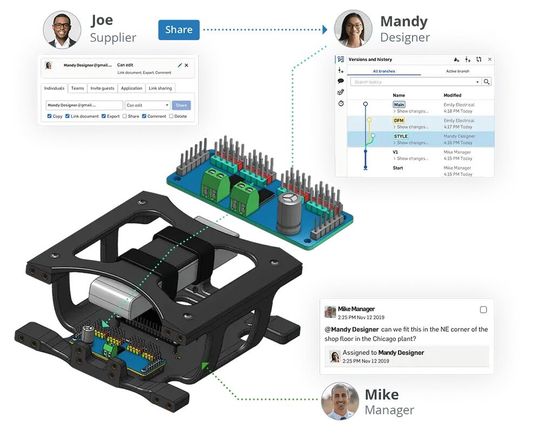
In modern product development, speed is crucial, and collaboration is the key. Traditional CAD systems often reach their limits: version conflicts, data loss, and time-consuming coordination processes slow down teams. The solution? Cloud-native CAD platforms like Onshape. A key advantage: real-time collaboration. Multiple designers can work on one model simultaneously—without the risk of version conflicts. Changes are instantly visible to everyone, including revision history and a comment function. This not only saves time but also improves team communication. Another advantage: platform independence. Whether in the office, home office, or on the go—access is simply via browser, without the need for local installations or licensing issues. This also makes it easier to involve external partners or customers in the development process.
Cloud-native CAD platforms like Onshape enable real-time collaboration. Multiple designers can work on a model simultaneously without the risk of conflicts.
(Image: PTC)
Tip: With the branching function, new ideas can be tested risk-free. Similar to software development, users can develop, compare, and merge alternative design paths as needed without jeopardizing the main model. Those still working with traditional CAD systems today are missing out on potential. Transitioning to cloud-based tools not only enables more efficient processes but also introduces a new way of collaboration—agile, transparent, and future-proof.
Key to Interoperability
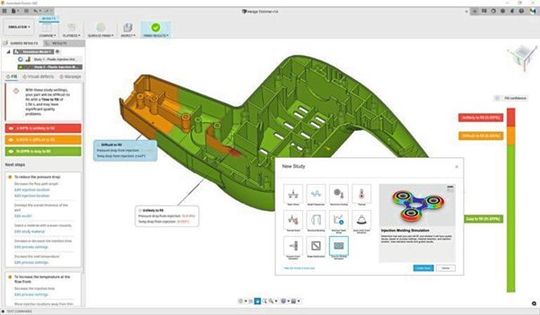
Fusion provides the tools to solve technical problems requiring thermal analyses, nonlinear calculations, and shape optimizations. Users not only have access to a variety of study types but can also use the cloud for simulation studies.
(Image: Autodesk)
The Any-CAD functionality in Fusion can, for example, be used by users to reference a Solidworks part designed by a contractor. Once the file is in Fusion, a link feature appears in the timeline.
This allows adding parametric features that are rebuilt when the original Solidworks part is modified. Any-CAD supports the entire product development process, and the advantages of moving desktop CAD to the cloud are numerous:
Once upon a time, in the dark ages of product design, simulation tools were reserved exclusively for specialists. CAD vendors recognized these trends and began implementing urgently needed changes.
Initially, they expanded their offerings to include simulation tools. Unfortunately, these were often just "lightweight" versions of their more expensive big brothers. Technical problems are becoming increasingly complex and require advanced tools and solvers for validation. Perhaps you are among the lucky few who have access to SolidWorks Simulation, Ansys, or Simulia. However, these tools can be very expensive.
Fusion provides the tools to solve engineering problems requiring thermal analysis, nonlinear calculations, and shape optimization. Users not only have access to a wide variety of study types but can also leverage the cloud for simulation studies. The cloud allows you to offload time-consuming studies from your laptop.
In addition, different design ideas or simulation scenarios can be run in parallel to arrive at the optimal decision more quickly. The best part? Any changes to the SolidWorks geometry are automatically updated in Fusion, preserving the simulation setup. Users only need to run the simulation once.
Tip: Use Cloud Solve again. With Fusion's cloud data, users can log in via a web browser to view, collaboratively edit, manage, and even modify CAD data. No server installation is required; it works seamlessly upon first login. Fusion even handles version control for Solidworks data: when changes are made to Solidworks files, versions are created in the cloud. Teams can comment, edit, and mark different versions to create a traceable record of design decisions throughout the entire product development process.
Develop And Design License-Free
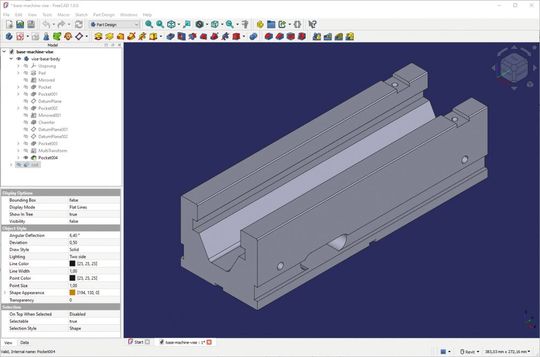
Free-CAD is a free open-source CAD software for designers in mechanical engineering, fixture design, and toolmaking, enabling the creation of 3D parts and assemblies as well as the derivation of technical drawings. Through the integrated Add-on Manager, more than 200 extensions are available as individual functions or entire workspaces for niche applications. Both contract manufacturers and OEMs can benefit from Free-CAD.
Open-source software offers numerous advantages.
(Image: Alsado)
Contract manufacturers in machining and sheet metal processing can use Free-CAD to design new customer components or edit existing ones. OEMs can fully integrate Free-CAD into the product development process. All users of Free-CAD as open-source software benefit from the elimination of licensing costs, independence from restrictive software licenses, and the wide range of freely available learning resources for new employees.
Date: 08.12.2025
Naturally, we always handle your personal data responsibly. Any personal data we receive from you is processed in accordance with applicable data protection legislation. For detailed information please see our privacy policy.
Consent to the use of data for promotional purposes
I hereby consent to Vogel Communications Group GmbH & Co. KG, Max-Planck-Str. 7-9, 97082 Würzburg including any affiliated companies according to §§ 15 et seq. AktG (hereafter: Vogel Communications Group) using my e-mail address to send editorial newsletters. A list of all affiliated companies can be found here
Newsletter content may include all products and services of any companies mentioned above, including for example specialist journals and books, events and fairs as well as event-related products and services, print and digital media offers and services such as additional (editorial) newsletters, raffles, lead campaigns, market research both online and offline, specialist webportals and e-learning offers. In case my personal telephone number has also been collected, it may be used for offers of aforementioned products, for services of the companies mentioned above, and market research purposes.
Additionally, my consent also includes the processing of my email address and telephone number for data matching for marketing purposes with select advertising partners such as LinkedIn, Google, and Meta. For this, Vogel Communications Group may transmit said data in hashed form to the advertising partners who then use said data to determine whether I am also a member of the mentioned advertising partner portals. Vogel Communications Group uses this feature for the purposes of re-targeting (up-selling, cross-selling, and customer loyalty), generating so-called look-alike audiences for acquisition of new customers, and as basis for exclusion for on-going advertising campaigns. Further information can be found in section “data matching for marketing purposes”.
In case I access protected data on Internet portals of Vogel Communications Group including any affiliated companies according to §§ 15 et seq. AktG, I need to provide further data in order to register for the access to such content. In return for this free access to editorial content, my data may be used in accordance with this consent for the purposes stated here. This does not apply to data matching for marketing purposes.
Right of revocation
I understand that I can revoke my consent at will. My revocation does not change the lawfulness of data processing that was conducted based on my consent leading up to my revocation. One option to declare my revocation is to use the contact form found at https://contact.vogel.de. In case I no longer wish to receive certain newsletters, I have subscribed to, I can also click on the unsubscribe link included at the end of a newsletter. Further information regarding my right of revocation and the implementation of it as well as the consequences of my revocation can be found in the data protection declaration, section editorial newsletter.
Master Even the Most Complex 3D CAD Data
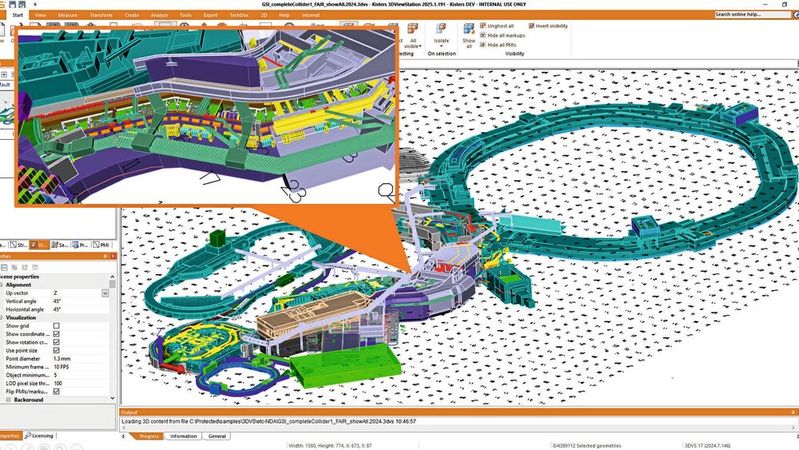
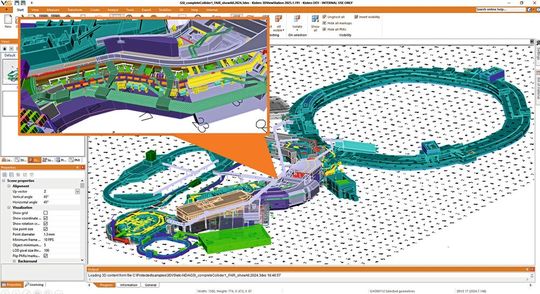
The Kisters 3D-View-Station offers a solution for CAD users that can handle even the most complex 3D CAD models quickly, reliably, and intuitively—regardless of the CAD system they originate from. Where traditional systems reach their limits, the Kisters 3D-View-Station impresses with outstanding performance: even assemblies with several gigabytes of data volume or models with millions of components can be loaded in just a few seconds.
3D-View-Station: Handle 3D CAD models quickly, reliably, and intuitively – no matter the CAD system they originate from.
(Image: Kisters)
Thanks to intelligent processing and the sophisticated in-house development of a high-performance graphics engine, the software maintains its responsiveness even with extremely large data volumes. The 3D-View-Station is not just a viewer—it is a comprehensive analysis and collaboration tool that integrates seamlessly into existing PLM, ERP, and other engineering IT infrastructures. With support for over 60 native and neutral CAD formats, it allows universal use without requiring the original CAD application.
User Tips from Zacher Component for Solidworks
For simple repetitive relationships, such as with screws or end caps, an Intelligent Relationship can be created and saved. When a screw is then dragged from the library and the component is marked, the screw is immediately placed with the desired relationships. Assigning keyboard shortcuts for the most-used functions, such as sketch features, to keys typically used for typing (A S D F G H J K L E R T U) makes the work process easier.
Tips for Greater Efficiency in Daily Work With Solidworks
Four tips from Bechtle PLM make working with Solidworks easier.
The company Bechtle PLM has some tips for design in Solidworks:
Save files for older versions: For compatibility with older systems or for collaboration with partners, SolidWorks offers the option of saving files to earlier versions. Designers benefit from seamless data exchange across systems and versions— without any loss of quality or additional adaptation effort.
Display units in file properties: This feature allows you to define and display units of measurement directly in the file properties. This saves time and minimizes errors caused by manual input—a particular advantage for international projects.
Set bounding boxes: The bounding box helps define precise boundaries for models. This facilitates organization, for example, when packaging components, and ensures that all relevant geometries remain visible and accessible.
Comment function in SolidWorks: With the integrated comment function, annotations can be added directly to the CAD file—ideal for notes, ideas, or suggestions. This keeps communication transparent and understandable even without external tools.
Harness the Potential of Parametric Studies
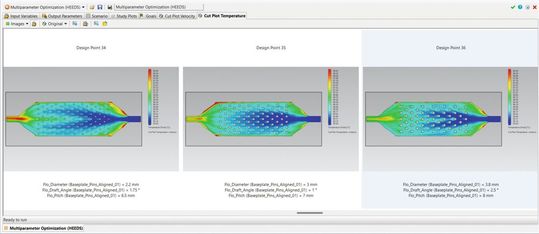
With the design exploration tools of Simcenter FLOEFD, efficiency in design optimization can be increased. The process begins with "Compare Configurations" to evaluate design variants. Users can then utilize parameter studies, Design of Experiments (DoE), and optimization with Simcenter Heeds to systematically determine the best design. Instead of relying on manual trial-and-error, users create a base configuration and let the intelligent automation of Simcenter FLOEFD do the work.
Comparison tools visualize how design changes affect performance.
(Image: Siemens)
The Simcenter Heeds Sherpa optimization algorithm also combines multiple strategies to find the optimal solution even faster. For example, when optimizing a heat sink, users define parameters such as fin height, spacing, and wall thickness, set boundary conditions and target values (such as temperature and pressure drop), and let Sherpa search for the best design. The results are prepared for easy comparison, with automatic charts and reports showing performance trends.
Tip: Define clear technical goals as optimization targets and use comparison tools to visualize how design changes affect performance.
Plan Transfer Systems Easily And Quickly
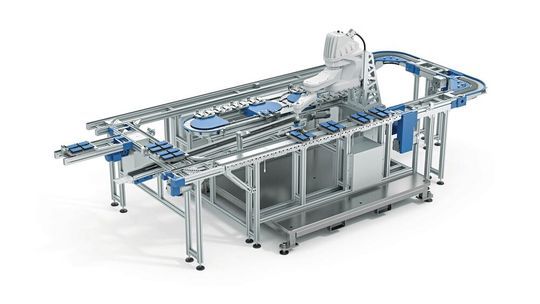
The Easy-Go online planning tool from Schnaithmann Maschinenbau GmbH is more than just a configurator for individual conveyor belts, belt sections, or conveyors. This online planning tool opens up a completely new dimension of transfer system planning for designers. With Easy-Go, users can make their projects more efficient and precise. Thanks to its intuitive user interface and extensive library of components, the planning tool enables the quick configuration of transfer systems.
Quickly achieve the transfer system with an online planning tool.
(Image: Schnaithmann)
The detailed real-time 3D visualization and various configuration automatisms help users to identify and quickly correct potential errors at an early stage. The seamless integration into existing CAD systems via the STEP format saves valuable time and resources. With Easy-Go, users have control over their projects, enabling them to turn their ideas into reality faster and share them with others.
Why Users in Electrical Planning Should Rely on Macros
In practice, electrical engineers often rely on the copy-and-paste method during project planning. However, caution is advised, as errors can multiply unnoticed and uncontrollably. Using meaningful macros, on the other hand, offers several advantages—these include cross-project consistency, a lower likelihood of errors, and time savings in the schematic design process. Additionally, macros can be easily adapted individually.
If users rely on macros in electrical planning, the engineering process accelerates by up to 90 percent while simultaneously minimizing the error rate.
(Image: Eplan)
Macros accelerate engineering
All changes made to a macro by users can also be automatically updated in all instances. This approach not only improves efficiency but also the overall quality and reliability of electrical design. Eplan macros also serve as the foundation for automated schematic creation with Eplan E-Build. Based on macros, functional basic modules of machines or systems are created in E-Build as so-called macro typicals. The result is an acceleration of the engineering process by up to 90 percent while simultaneously minimizing the error rate.
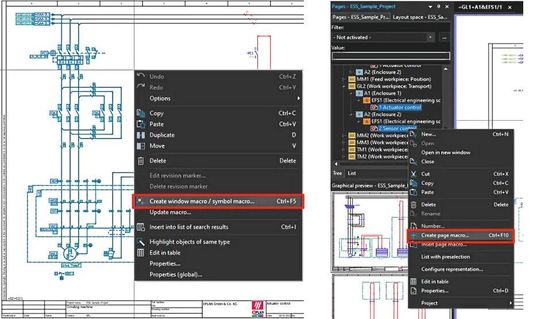
Basically, there are two types of macros: window macros and page macros. Window macros are circuit diagram sections, while page macros can contain one or more pages with complete circuits.
Eplan recommends that you generally save the macros in the Eplan master data so that you can access them later via links in the parts database.
Above all, it is automatically made available in the Insertion Center, which represents the source of the data and thus also of the available macros across all projects when creating circuit diagrams with Eplan P8.
The directory structure for storing macros should logically reflect their purpose and content.
Next, users select the display type. If the original pattern was drawn correctly in the corresponding display type, it should be preselected. If this is not the case, the display type of the original pattern should be reviewed and any errors corrected.
Now fill in the description and confirm the creation of the macro with OK.
A macro can then be inserted from the macro collection in the Insert Center.
Stay on Top With Low-Code
Technical changes are a routine part of design—whether due to new requirements or adjustments to supplier parts. However, the process often slows down because data from PLM, ERP, or production is not consistently available. Low-code platforms provide a solution: they enable the rapid development of custom applications that digitally capture change requests, automate their forwarding, and track their status in real-time. Combined with existing PLM and ERP systems, this creates a digital workflow that securely documents all steps—for traceability, audits, and future product adjustments. The advantage: IT architecture does not need extensive modifications, as low-code solutions integrate flexibly into the system landscape. Designers maintain an overview, coordination runs more smoothly, and development cycles are shortened. Where information gaps and media disruptions hinder daily operations, low-code is the ideal tool.
Secure and Compliant Authentication in Laboratories



:quality(80)/p7i.vogel.de/wcms/53/f7/53f7dadbe4d656a3fd4f4077445f29f6/0129828707v1.jpeg "Thanks to its compact design and drilling/unscrewing function, the Fire Birdie is suitable for applications with limited installation space and frequent tool changes. (Image:Marcel Kraibühler)")
:quality(80)/p7i.vogel.de/wcms/da/4d/da4da8d34671dc6bce80e496212de877/0129850788v1.jpeg "Mate-XT Go supports the arms and shoulders during overhead work and repetitive tasks and is designed to significantly reduce muscle strain in everyday working life. (Image:Comau)")
:quality(80)/p7i.vogel.de/wcms/95/97/95976dbaac68b249eb65e74c5aad5300/0129651893v1.jpeg "The C2.0 centric clamps, the S2 fixed jaw clamps and the \"gredoc\" zero-point clamping systems are used for machining the raw parts. Fastening is carried out with width across flats 27. (Image:Gressel)")
:quality(80)/p7i.vogel.de/wcms/57/1b/571b8895efb299d70846bbdbd7af2338/0130043886v1.jpeg "Servo hydraulics independent of the control system: The servo hydraulics software module is integrated directly into the b Maxx 5500 servo drive (pictured: Mehmet Sari, Export Sales Manager at Hürsan Pres (left), Özgür Deniz Demirbaş, Country Manager at Baumüller Turkey) (Image:Baumüller)")
:quality(80)/p7i.vogel.de/wcms/3b/27/3b27f6c5848be73acecb04054bf0a146/0130115209v1.jpeg "Spectroscopic glucose measurement with infrared spectroscopy enables more regular measurements without physical strain. (Image:Endrich)")
:quality(80)/p7i.vogel.de/wcms/3f/cc/3fccb748b0fe16f1f61249d94c72f126/0130149439v1.jpeg "Requirements for integrated power supply systems: Precise AC and DC power supply systems that not only provide energy, but also reliably combine measurement, analysis and system integration. (Image:Schulz Electronic)")
:quality(80)/p7i.vogel.de/wcms/fd/93/fd93e01c16f5a4709278499d981a459c/0130061090v1.jpeg "Revealed: These servo drives are assembled at Aerotech in Fürth. (Image:Aerotech)")
:quality(80)/p7i.vogel.de/wcms/cb/8a/cb8ae7f5205365efce3e7285154fc3cf/0130132198v1.jpeg "Markus Huber (left) and Nicolai Friis from TU Wien know how to make quantum computers multidimensional in order to perform computing operations even better. (Image:TU Vienna / A. Rommel)")
:quality(80)/p7i.vogel.de/wcms/63/21/6321beb732bf7d92640df46d7aa77573/0130125122v1.jpeg "As part of the Carbon Lab Factory Lausitz, a pilot plant for the production of sustainable, cost-effective and competitive carbon fibers will be built at the Guben site. (Image:Fraunhofer IAP / Kristin Stein)")
:quality(80)/p7i.vogel.de/wcms/53/4f/534fe0f168f6ee070ded4a48faca4cef/business-wire-main-image-1103x620v1.jpeg "The new UR AI Trainer, developed by Universal Robots and Scale AI, is the first direct lab-to-factory solution for AI model training.
(Source: Universal Robots)")
:quality(80)/p7i.vogel.de/wcms/08/70/087062e2e1a9b9add5777410dd746ee9/adobestock-1923991605-5607x3156v1v1.jpeg "A new type of tactile sensor, inspired by human skin, even recognizes grains of sand. (Image:Curioso.Photography - stock.adobe.com)")
:quality(80)/p7i.vogel.de/wcms/7f/08/7f087d7013424d123ab7275cd2e3fe55/adobestock-809456218--c2-a9-20degimages-20-e2-80-93-20stock-adobe-com-ki-generiert-4179x2351v1v1.jpeg "The digital upgrading of existing machines conserves resources, saves energy and reduces the need for new production. (Image:Degimages - stock.adobe.com/AI-generated)")
:quality(80)/p7i.vogel.de/wcms/90/db/90db3087d3af0560fcdb4dbc42443ce1/0130157448v1.jpeg "The switch to SDV is the most complex transformation the industry has ever had to master. The end consumer gets a vehicle that gains rather than loses value over its lifetime. (Image:Sonatus)")
:quality(80)/p7i.vogel.de/wcms/73/f0/73f00bb99a23197db05bb584fe78f20f/0130080581v1.jpeg "The \"China Speed\" analysis by Roland Berger shows that the speed of development has only a limited connection with labor costs. (Image:freely licensed at Pexels)")
:quality(80)/p7i.vogel.de/wcms/2f/5b/2f5ba6a150b52c2b8efada560c5cdafe/0130143442v1.jpeg "Automotive suppliers are facing a severe crisis, which is primarily due to a combination of structural change and economic problems. (Image:freely licensed at Pexels)")
:quality(80)/p7i.vogel.de/wcms/22/d0/22d03cd48e992435338b59464c428d41/0129739814v1.jpeg "More electric vehicles on the roads mean a higher demand for electricity - which should ideally be covered by renewable energies. (Image:BMW)")
:quality(80)/p7i.vogel.de/wcms/94/7a/947ac066b98cbcd3470e83ff9da3e25f/0130096114v1.jpeg "The use of amorphous steels in the stator enables a significant reduction in losses and increases the efficiency of modern electric motors in vehicle drives. (Image:Horse Powertrain)")
:quality(80)/p7i.vogel.de/wcms/e5/f1/e5f171d3d7ae021332cc0aeae4d6e299/0130127049v1.jpeg "In collaboration with Shanghai Jiao Tong University, Lenovo has presented a silicon anode battery under the name \"ED1000\" as a proof of concept for mobile workstations. (Image:Lenovo)")
:quality(80)/p7i.vogel.de/wcms/fa/69/fa696e59706b96fff02283dd74cc2398/0130129635v1.jpeg "Samsung Co-CEO Jun Young-hyun wants to respond to the AI-driven boom in demand in the memory market with contracts for up to five years. This should provide more planning security in the traditionally volatile storage business. At the same time, however, this is likely to increase the pressure on customers to secure precise long-term requirements, prices and supply chains. (Image:Samsung)")
:quality(80)/p7i.vogel.de/wcms/31/a8/31a883a47b86634c382923e78fd9a4c9/0130133225v1.jpeg "Figure 1: GMSL-capable point-to-point connection. (Image:ADI)")
:quality(80):fill(efefef,0)/p7i.vogel.de/wcms/67/ac/67acb931a438c/elatec-wp-gmp.png "Elatec WP GMP")
:quality(80)/p7i.vogel.de/wcms/ab/82/ab82dfd86fd624854af173066cfacea5/0129154593v1.jpeg "The digital Mycelium Lifecycle Platform supports production managers in operating their machines safely, securely, efficiently, and in compliance with standards throughout their entire lifecycle. It combines the management of personnel and machines on a single platform. (Image:Pilz GmbH & Co. KG)")
:quality(80)/p7i.vogel.de/wcms/fb/1a/fb1a2c954c26a53620c15563f152102e/0127956925v1.jpeg "The Weidmüller Configurator (WMC), the configuration tool for seamless and secure planning of electrical systems as well as the easy procurement and assembly of complete solutions, imports data from Eplan. (Image:Weidmüller)")